Wednesday, November 18, 2009

iSpionage: Keyword Research and Competitive Analysis Tool


iSpionage is an advanced (paid) keyword research tool allowing for numerous keyword management and competitive analysis features many people (especially PPC marketers) will find useful:
(!) Generate keyword suggestions; 
(!) Group and manage keyword lists; 
(!) Research and monitor PPC competitors; 
(!) Create ad groups; 
(!) Export keyword lists and ad campaigns; 
(!) More!
I found the tool useful enough to make a thorough feature overview:

Major Feature 1: Competitive Research

Start by adding a new project: provide your website URL and let the tool analyze the page content and retrieve base keywords. The tool will then fetch those base keywords and generate the list of suggestions based on Google’s API . Next to each suggested key phrase, see:
  • The average monthly search volume,
  • The search volume for the past month,
  • The advertiser competition.
Select the words you want to further work on and add them to your new project:
Select keywords
After your project is created, you will be redirected to the PROJECTS folder where you can click your new project link and get access to lots of useful information:

Project Summary

Select the data type you want to be summarized: top advertisers ranked by impression share or top advertisers ranked by Ad Coverage and number of the words in the project.
Project summary

Keywords

The table of your selected keywords contains:
  • Average CPC for each key term;
  • Average search volume;
  • Google unique advertisers;
  • Yahoo! unique advertisers;
  • Bing unique advertisers;
  • Latest ads.
Keywords

Advertisers

The table contains the following data:
  • Your competitor’s domain;
  • Impression share (The impression share is estimated based on the advertiser’s ad coverage of each individual keyword, as well as the keyword search volume);
  • Average ad coverage (The individual keywords ad coverage divided by the number of keywords that triggered the first page ads);
  • Average ad position.
Advertisers
You can compare two or more advertisers. Select the competitors you want to compare and click “Compare” – the tool will compile a summing up table giving the following information for each competitor:
  • Search engine the competitor advertises in;
  • The number of words associated with the ad;
  • The ad itself;
  • The landing page;
  • The latest position;
  • When the ad was last seen;
  • How many times the ad appears;
  • The affiliate network:
Compare advertisers
You can add each competitor to the watch list to be alerted on new ads and new keywords the advertiser stats to bid on:
Watch list

Related Keywords

For each key term you decided to manage, you can also find “related keywords” – a bit extended version of the base one. You can view each word stats (average search volume, Google, Yahoo and Bing ads).
You can add any word to your project ad export the table into a text or Excel file.
Related Keywords

Major Feature 2: Keyword and Campaign Builder

While the previous feature set was all about the competitors, this toolkit is more about creating and organizing keyword campaigns.
Start by typing in your base word and let the tool generate the list of related keywords. Your next step will be to select those you want to focus on (like in the previous steps, average search volume and advertisers’ competition will help you to choose).
Just select those phrases you are interested in and click Add Selected to “My Keyword Bag” (the option hides behind “Actions” link).

Clean Up Keyword Lists

You can now go to “Keyword Clean Up” tab to sort and clean up the list:
  • Sort the list;
  • Remove duplicates;
  • Keep / Remove lines containing any specified word;
  • Keep lines with the specified number of keywords;
  • Remove the specified characters (e.g. @$#/%^&*~_=+);
  • Remove the specified words:
Clean up keyword list
After that you will be offered to save the list, create an ad group or build one-keyword-per-ad group campaign.

Group the Keywords

Start by giving a name to your campaign for further reference. Now provide the grouping criteria:
  • Create a group by base word (Keep lines containing this word); AND / OR
  • Create a group by excluding some words from the list AND / OR
  • Create a group based on the number of words in a phrase (Keep lines with the number of keywords).
Don’t forget to give each group a name (I suggest giving a descriptive name based on the grouping criteria: e.g. “3-word”, “no-stop words”, etc):
Group keywords

Create an Ad Campaign

When you are done grouping your keywords, you can now go to “Campaign Builder” tab to create your ad campaign:
  • Name the project;
  • Set the search engine;
  • For each group specify the match type (broad, phrase, exact) and the maximum cost per click:
Create campaign
After that in the “Ad Setup” you should give your ads details (each ad headline, text and destination URL) and generate the output once you are done (export it to the text file or Excel).

Create Customized Alerts

“Alerts” option was one of my favorite ones. It allows to set up alerts on the project level (e.g. “Alert me when new advertisers that use the keywords from XX project appear in Google“) or more specific alerts (tracking the selected competitors).You are allowed to provide up to 6 email addresses to send alert copies to.
Alerts

3 Tools That Make Posting Links to Wordpress Easy and Fun

Wordpress is one of the most usable and convenient platforms to run a blog. But besides actually publishing your thoughts to the web, Wordpress might have another cool use: it is a handy way to store and manage the info you come across daily – it can be turned into your personal collection (either private or public) of topical links and resources organized by tags and categories.
Here are 3 tools that make bookmarking links to Wordpress easy, fast and fun!
While the first two tools extract videos and images as well as the selected text allowing for easier and quicker blog posting, the third one looks a quicker and easier way to create and save a draft without ever going to your blog dashboard.

Clipmarks

  1. Install Clipmarks FireFox addon and restart your browser;
  2. Navigate to the page you want to re-blog;
  3. Click the green Clipmarks icon, highlight places in the page you want to copy to your blog page and select “Blog”:
Clipmarks: WordPress
If you’re doing this for the first time, you’ll need to set up your blog first.
  • Choose “Wordpress” as your blog type (there are many more blog types supported by the way).
  • Provide your blog dashboard login and password;
  • Provide your blog URL;
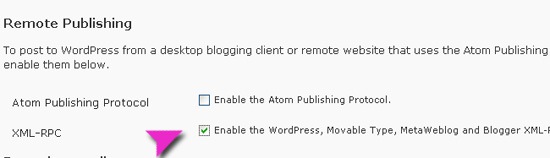
  • Before hitting “Next” be sure to configure your own blog to allow automatic posting: go to your blog wp-admin, then to Settings -> Writing, then check the “Enable XMLRPC” checkbox and save your settings.
Clipmarks: set up a blog
After that you’ll be able to see your new post details ready to publication:
  • You can check which blogs to publish to (if there are many of them);
  • Add the post title and your remarks;
  • Customize the clipped text styles (you can remove link to the clipmarks service, customize the border, etc);
  • Publish to blog!
Clipmarks - post to blogs

Press This

“Press This for Wordpress” is a handy way to reblog content that you’d love to share on your blog. To install:
  • Log-in to your Wordpress admin panel.
  • In your sidebar on the left, select “Tools”.
  • Drag the “Press This” bookmarklet to your browser’s toolbar.
Press This for Wordpress - installation
Now, click the “Press This” bookmarklet to quickly login and update your blog. If you’re already logged in, the bookmarklet will immediately pull up the blog editor to create a new post.
Unlike the Clipmarks tool, the “Press This” bookmarklet can only be used to update one blog (which is a disadvantage for me as I am running a number of blogs). On the other hand, the bookmarklet is quicker and easier to use, it doesn’t use any extra styles to insert the retrieved abstract and is overall a more basic (which is often better) tool.

ScribeFire

ScribeFire (installed here) is a FireFox addon that integrates with your browser to let you easily post to your blog: you can drag and drop formatted text from pages you are browsing, take notes, and post to your blog.
The blog set-up is really quick and easy. The tool does pretty much everything, all you need id to specify your blog URL and dashboard login information.
When you land on a page you feel like saving or re-blogging, click the tool icon in the status bar. A panel appears where you can create the post, save it as draft, preview, edit – pretty much everything you can do in the Wordpress editor.
What the addon doesn’t do (unlike the above two tools) is extracting the selected content and media from the page (the feature I really like to be there).
ScribeFire

Google to Release Chrome OS Next Week?

There’s no doubt that many are anticipating the release of Google’s Chrome OS. In fact, we’ve seen several “alleged” screenshots and what-have-you’s relating to the Chrome OS before. But none of these proved to be official though. And we were told that Google Chrome OS was not to become available until fall of next year. But then, TechCrunch seems pretty convinced that the first build of the Chrome OS will be made available next week.Whether Google will really release the early build of the Chrome OS or not next week is not the main issue here. Good if they do, good as well if they don’t. According to TC, should the Chrome OS is released next week, it is not yet sure whether it can be used and installed on your regular notebooks and PCs.
Certainly there are many things to consider, before you even get excited  about using it on your existing machines. Among these things is of course the available of driver supports.
Another indication that this rumor might be true is the fact that Google might be rushing it, especially now that Windows 7 is starting to make some good vibes in the market.
We’re betting of course that this early version of Google Chrome OS will run smoothly as possible on netbooks. We all know that Google is gearing the OS for specific use of netbooks. If that’s the case, then now I’m excited about the release next week. Hopefully, my Eee PC 1000HE will be able to run it.

Featured FireFox Addon: See Which Software the Site Uses with Wappalyzer


Wappalyzer is a FireFox addon that shows you which software is used on the page you’re currently at.
The add-on recognizes a lot of web applications including CMS and e-commerce systems, message boards, hosting panels, widgets, JavaScript frameworks, analytics tools and more.
After you install the addon and restart your browser, you’ll be able to see which software the site uses in the FireFox status bar (as well as which traffic analyzers they have installed):

Wappalyzer
Depending on your style of working, Internet speed and daily tasks you can optimize the tool (the tool “Options” are available after you right-click on the icon in the status bar):

  • If you always want to know which software the site is using, set the tool to retrieve the information automatically (Otherwise, just let it show you the info once you click);
  • If you don’t think you can recognize the software by the icons, set the tool to show you the software names once you hover over or click the icons:
Wappalyzer
Here’s an extended (but not complete) list of the web and JavaScript frameworks, CMS and Wiki systems, Analytics and traffic analyzers the tool is reported to recognize:
AWStats 
BIGACE 
BigDump 
Blogger 
Clicky 
CMS Made Simple 
ConversionLab 
Coppermine 
cPanel 
Crazy Egg 
CubeCart 
DirectAdmin 
dojo 
DokuWiki 
Drupal 
e107 
ExtJS 
eZ Publish 
FluxBB 
Google Analytics 
Google Friend Connect 
Google Maps 
IPB 
Joomla 
jQuery 
Koego 
Kolibri CMS 
LiveJournal 
Magento 
MediaWiki 
MiniBB 
MochiKit 
MODx 
MooTools 
Movable Type 
MyBB 
MyBlogLog 
OneStat 
osCommerce 
osCSS 
papaya CMS 
PHP-Fusion 
phpBB 
phpDocumentor 
phpMyAdmin 
Plesk 
posterous 
Prestashop 
Prototype 
punBB 
Quantcast 
s9y 
script.aculo.us 
Site Meter 
SMF 
SPIP 
Squarespace 
StatCounter 
Tumblr 
TypePad 
TYPO3 
TYPOlight 
Ubercart 
Vanilla 
vBulletin 
viennaCMS 
VisualPath 
Vox 
VP-ASP 
W3Counter 
webEdition 
WebPublisher 
WikkaWiki 
WordPress 
XMB 
xtCommerce 
YaBB 
YUI 
Zen Cart

Interact with On-Page Semantic Data with Operator FireFox Addon

Have you ever heard about microformats? If you still need someone to clearly explain what it is about, check out Joe Hall’s post on development trends that will impact SEO.
Microformats look for a new way to format markup languages. Essentially, they offer a new standard for identifying important information.
There’s one really nice FireFox addon that uses Microformats to analyze the page content: “Operator” is an extension for Firefox that adds the ability to interact with semantic data on web pages, including microformats, RDFa and eRDF. It can turn really useful for spotting the essential microformats used on the page.
Once you install it, you’ll be able to see the toolbar that can be toggled using View > Toolbars > Operator Toolbar. (Useful tip: To make the tool hassle-free, find the checkbox in Options that causes the toolbar to auto-hide when there is no data on the page).
The toolbar breaks data found on a page into the following sections:
  • Contacts;
  • Events;
  • Locations;
  • Tagspaces;
  • Bookmarks;
  • Resources.
Here are a few examples of what each section stands for:
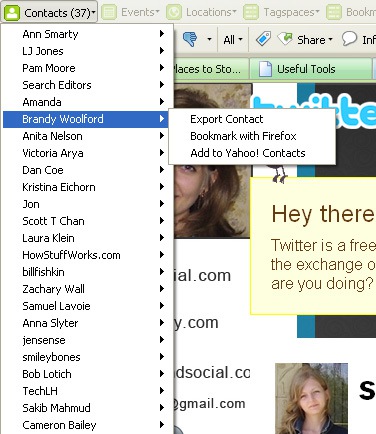
1. Try visiting your Twitter profile page. The tool will extract your contacts:
Operator: Contacts
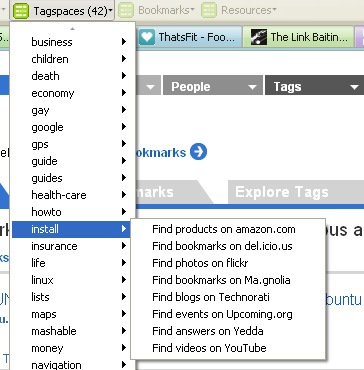
2. Now, go to Delicious home page and watch the tool extract all tags (you can search each tag on Flickr, Delicious, Technorati, etc):
Operator tagspaces
The tool offers a few really cool features:
  • Its “Highlight” feature allows you to find the tag by choosing it in the drop-down;
  • The operator can be accessed via the status bar icon (the button can be added via the Operator options dialog. Check the box that says “Display icon in status bar”) or the toolbar bar icon (The Operator toolbar button can be added to your Firefox toolbar by selecting View > Toolbars > Customize).
  • You can add or delete data formats to be displayed. In the Operator options panel, there is a Data Formats tab. This tab has a listbox that contains all the data formats that will be displayed. You can use the New button to add data formats and the delete button to remove them. You can also change the order in which the data formats are displayed.
  • You can also add or remove actions taken for each data format. In the Operator options panel, there is an Actions tab. This tab has a listbox that contains all the actions that will be displayed. You can check or uncheck the checkbox to determine what actions are displayed in the Operator menus.
  • You can also install user scripts to add optional functionality.

Site Speed May Soon Affect Google Page Ranking

 In a recent interview with Google Engineer Matt Cutts, Web Pro News is reporting that Matt  may have hinted on the future of how Google may  rank websites. And guess what? It has something to do with how fast a website actually loads.
During the interview Matt told Web Pro News:

“I think a lot of people in 2010 are going to be thinking more about ‘how do I have my site be fast,’ how do I have it be rich without writing a bunch of custom javascript?’”
Of course it is a given that the speed by which your sites load matters a lot to your visitors. Slow loading sites drive away potential visitors while fast loading sites encourage them to stay longer on your site. And this is what Google has been advocating recently – making the Internet experience of users a little bit faster.
It is not yet clear how Google is going to implement site ranking based on site speed, if indeed there is such a plan.
But just in case it pushes through – are you ready for some site speed optimization? SSO side by side with SEO might just be the norm in the coming days, don’t you think so?

Google Analytics Now Tracks Feed Item Clicks

Google Analytics has just added AdSense for Feeds and Google Feedburner data to the items it monitors and analyzes. So, if you are using either of the two tools for feed advertising, you can now see how far your ad implementation are doing in terms of item clicks. Google Analytics will even provide you with additional information that may help you understand who Feedburner gives more traffic to your sites.
Picture 97
If you’re using AdSense for Feeds of Google Feedburner, the new feature will also help you classify links through tagging the source as – “Feedburner”, the medium as the channel by which feeds are sent, that is either as “feed” or “email.” The content of your feeds will of course be classified as the actual endpoint application in which users are viewing your feed contents. This could either be through Google Reader, Yahoo mail and others.  You can see this data on your Google Analytics account under All Traffic Sources view.
If you have enabled item click tracking on your Google Analytics Account, your item URLS are being automatically tagged with the Google Analytics parameters.
If you haven’t sign up for Google Analytics, now is perhaps the best time to do it. Things can get pretty exciting with RSS feed advertising.

10-plus SEO Questions - Google Rules

1. Is there any fixed rule for Google as far as SEO is concerned? If so, what are the steps?

If only! There are no fixed rules because every website is different and has different needs. There are basic things that all websites need to do in order to improve their chances of showing up in Google search results for relevant phrases, but no magic formula.

See "The Art of SEO" article for more on this.

2. Do the following play important roles in website page ranking and positioning?

    • PR


Yes, real PageRank (PR), the kind that only Google knows about plays a very large part in websites showing up (or not) for search queries that are relevant to it. But toolbar PageRank is another matter entirely. What you see there doesn't correlate very well to where your page will show up in the search results.

See: "Getting Into Google" (Scroll down to the "Google Still Loves Its PageRank" part.)

    • The number of incoming links

Not so much in and of itself. Real PR, as mentioned above, is calculated not only on the number of links, but also on the quality of those links. A handful of links from authoritative, trustworthy, relevant pages should far outweigh hundreds of links from so-so sites.

See the High Rankings Link Building Forum.

    • Keyword density


Not in that there's some special percentage that you need to aim for. Certainly it's helpful to have the keyword phrases that you'd like to show up being used within the content of your page. But that's just common sense, if you ask me. Surely, if your page is about a certain something (your keyword phrase), how could that phrase NOT be on the page?

See the various threads on keyword density on the High Rankings Forum.


    • Page response time

This is important only because if it takes too long to load, it might not be properly (or completely) indexed.

    • Bounce rate

It's doubtful that this matters, because there's no way for Google to know the bounce rate of every site. And it wouldn't be fair for them to only count the bounce rates of those sites that have Google Analytics installed, so my guess is that this is not a factor.

See various High Rankings forum threads.

    • Time on site

Like the above answer, they don't know this number unless the site has Google Analytics installed. That said, they may sometimes incorporate the old trick of seeing if a searcher clicks to another site in the search results after clicking one result, and how long it took them to click another. In other words, if they find that lots of people who clicked to one site in the search engine results pages (SERPs) always end up back at Google to try another site, then perhaps that first site wasn't a great answer to the search query after all.

    • Domain page / Page age

From what I can tell, this can often be a factor. But it doesn't seem to be as prominent a factor as it was a few years ago.

3. Is there any special technique for content writing?

There's no special technique, but I highly suggest hiring a professional marketing copywriter. You will see a positive return on your investment very quickly if you do. In addition, the tried and true SEO copyediting techniques in my "Nitty-gritty of Writing for Search Engines" may come in handy if you're not sure how to integrate your keyword phrases into your professionally written content.


4. Should we cater to code-to-text ratio while developing websites?

There's not one shred of evidence that this would have an effect on where a page would show up in the search results for a relevant search query.

5. If active scripting is a must for webpage development, how harmful can it be for PageRank and positions?

It's typically not harmful at all because it's usually done before a browser (or search engine spider) sees a page. To users and search engines, your dynamically generated pages are just static HTML by the time they get to them. Still, not all dynamically generated pages are created equal. There are some ways of developing your site that are less search friendly than others. For example, some JavaScript menus, some AJAX, etc.

See "Diagnosing the SEO Health of Your Website".

6. If a webpage is ranking top for a specific keyword, if we make textual changes in that webpage, is there any chance that we lose the rankings?

Any changes you make to a page's content can affect how relevant the search engines believe it to be for any particular search query. That doesn't mean it definitely will change the search results, but it could. The only way to know is to try it and see. Usually, if you're rewriting your page to be more useful to your site visitors and you don't remove all the instances of the keyword phrase, you should be fine. Because nothing is permanent with SEO, if you don't like what you see you can tweak it until you do.


Top 10 AdSense Tricks To Boost Your Commission

Google AdSense - http://www.google.com/adsense - is fast becoming the preferred way for people to earn an income online. Forget eBay and multiple affiliate programs. Whether you are a work-at-home mom trying to make a little extra cash or an Internet entrepreneur with hundreds of monetized websites, AdSense is truly the easiest way to earn money.

Simply sign up for a free account, grab your ad code and paste it in your site. But here's the amazing thing - no matter how much money AdSense is making for you right now, a few simple tweaks can increase that amount considerably. And I should know, after learning about these tricks, I more than doubled my AdSense commissions!

The self-proclaimed AdSense gurus and experts are sharing this insider knowledge, for a fee.

You can learn all these secrets from them, as long as you buy their e-book, sign up for their seminar or purchase their newsletter. But I'm going to share all their AdSense tricks for free. Here they are:


1) Color code your ads to match your web site palette *exactly*. Don't use frames around your ads. Instead, in the AdSense code generation interface, make sure you choose the same color as your page background for the ad frame and the ad background.

When choosing the ad heading colors, match them to the *exact* color of your page headings. Use the exact same ad background shade as your page background. Use the exact same ad text font and color as the text on your pages. You can see an example of this color-matching on my Search Engine Advice Blog at - http://www.searchenginecollege.com/blog.htm - notice the 4 link ad unit at the top and the skyscraper text ad unit on the left hand side under the heading Ads by Google as you scroll down the page? The link and text colors are identical to the color palette used throughout the rest of the page.

Near enough is NOT good enough. If you can't quite get the color matching right, use Google's built in color palette together with the RGB to HEX or vice versa color converter on this page - http://www.w3.org/MarkUp/Guide/Style. That handy little tool was a life saver for me.

This is probably the one single tweak that made the most difference to my commission levels.

2) Try not to use the traditional horizontal banner style or leaderboard image ads because people are blind to them.

3) Use Google's own AdSense optimization tips at https://www.google.com/support/adsense/bin/static.py?page=tips.html and visual heat map to assist you in deciding where on your page to place your AdSense ad code.

4) Research competitive keywords using a keyword research tool such as Keyword Discovery at http://www.keyworddiscovery.com/ or grab a list of the most popular keywords from various sources and use them in your web site pages where relevant. This article - http://searchenginewatch.com/facts/article.php/2156041 - is a good source of frequently searched keywords. Targeting popular keywords should trigger AdSense ads on your pages that utilize those keywords. The more popular the keyword or phrase, the higher AdWords advertisers are generally willing to pay per click for it so the higher your commission on those clicks.

5) Incorporate the AdSense code into your page so that the ads look like a regular part of your site. You can see an example on this Internet Dating Stories site - http://www.lovestory.com.au/ - where link ads are incorporated within the regular left hand navigation of the site under the heading "Feature Links".

6) Use Google's new 4 and 5 link ad units wherever possible. They seem to have a much higher Click Through Rate (CTR) than regular ad styles. You can view all the AdSense ad formats at https://www.google.com/adsense/adformats.


7) Place arrows or images next to your ads to draw attention to them. You can see two different versions of on this search engine article library page - http://www.searchenginecollege.com/articles/article-library.htm - at the top (where a pointing hand directs your eye to the ad) and the bottom where 3 images draw your attention to each of the three AdSense ads.

8) Use the full allowance of multiple AdSense ads on each of your pages - 3 regular AdSense ads, plus 1 link unit. Use careful placement of these ads so they blend into your site and don't distract from your content. Clever use of this allowance can be seen on this page about bad Internet dating stories - http://www.lovestory.com.au/bad-stories.htm - where you see:

- 1 horizontal 4 link ad unit towards the top of the page under the first paragraph.
- 1 vertical skyscraper text ad unit about halfway down the left hand side under "Sponsor Links".
- 1 vertical skyscraper image ad unit down the left hand side under "Sponsor Links".
- 1 horizontal text banner unit at the bottom of the page with images above each ad to draw attention to them.

You can also include 1 AdSense referral button in addition to the 3 other units.

9) Tailor your page content to a particular niche or focus. Page content that is tailored towards a specific theme is more likely to trigger AdWords ads that closely match the content and are therefore more likely to interest your visitors and inspire them to click.

Don't create pages merely for the sake of placing AdSense ads. Visitors (and search engines) can see through this ruse in an instant.

10) Use custom Ad Channels for each of your ad placements, for example, "Top 5 Link Unit Blue Palette" or "Left Side Navigation Image Skyscraper" etc. Tweak, track and measure the success of each of these custom channels so you know what gives you the highest CTR. Some ad formats and colors will work better than others, but you won't know which until you test, test and test some more!